Game guide
How to Play NiNjAttack
NiNjAttack is a short-run arcade game: protect the ninja at the bottom of the arena, throw shuriken toward incoming enemies and keep your three lives for as long as possible.
Quick start
- Open the game. Use a desktop or laptop browser for the main battlefield and press Play in the scroll menu if you want to use the mouse immediately.
- Optional: pair a phone. Choose Controller in the scroll menu, scan the QR code with your smartphone and leave that controller page open.
- Move, aim and throw. Use A/D or the arrow keys to move horizontally. On the phone, hold the left or right movement button to move, then tap the throw area to fire in the tapped direction. With a mouse, click across the game arena to choose the throw direction.
- Protect your three lives. Stop enemy ninjas and enemy shuriken before they reach the player. The run ends when all three lives are gone.
The objective
Enemies continually enter from the top of the arena until all three lives are gone. The difficulty increases gradually as you defeat more ninjas: spawn timing tightens, movement becomes faster and more demanding enemy classes fade into the mix without interrupting the run.
Defeating ninjas awards points based on the enemy type. Successful throws build a combo; every five consecutive successful contacts increases the score multiplier, up to ×4. Missing completely or losing a life resets the combo. Your own shuriken can also cancel an incoming enemy shuriken, which counts as a successful interception and awards points.
You lose one life when an enemy reaches the player line or when an enemy shuriken hits the player. Score, lives and your saved coin total are shown in the upper-left corner during a run.
Using the smartphone controller
1. Show the QR code
From the game's opening scroll, choose Controller. The QR code contains a session identifier so the phone can send input to the correct game tab.
2. Scan with your phone
Open the QR code with the phone's camera or QR scanner. It loads the NiNjAttack controller page in the phone browser; there is no separate app to install.
3. Tap to throw
Tap once on the phone controller. The horizontal tap position determines the firing angle and sends one throw to the main game: tap toward the left, center or right depending on where you want the shuriken to travel.
Mouse controls
The game also supports direct mouse input on the main screen. While a run is active, click inside the arena. The horizontal position of the click determines the firing angle: clicking farther left throws toward the left side, clicking near the center shoots more vertically, and clicking farther right throws toward the right.
This is useful for testing or playing without a second device. The phone controller is optional, not a requirement for starting a run.
Movement and coin drops
During a run, move your ninja horizontally with A / D or the left / right arrow keys. Movement is independent from aiming: on desktop use A/D or the arrow keys; on the phone hold the dedicated left/right buttons. Mouse clicks and taps on the controller throw area still choose the throw direction, and one valid tap still creates exactly one shuriken.
Defeated enemies can randomly drop a spinning silver coin. Move into it before it disappears to add its value to your saved coin total. Drops are intentionally unpredictable: most coins are worth 1–3, while 5 and 10 are rarer. Harder enemy classes have a higher chance to drop something.
Know your enemies
Enemy classes are introduced gradually as a run becomes harder. Their belt colors give you a quick visual cue for the most important behavior differences.
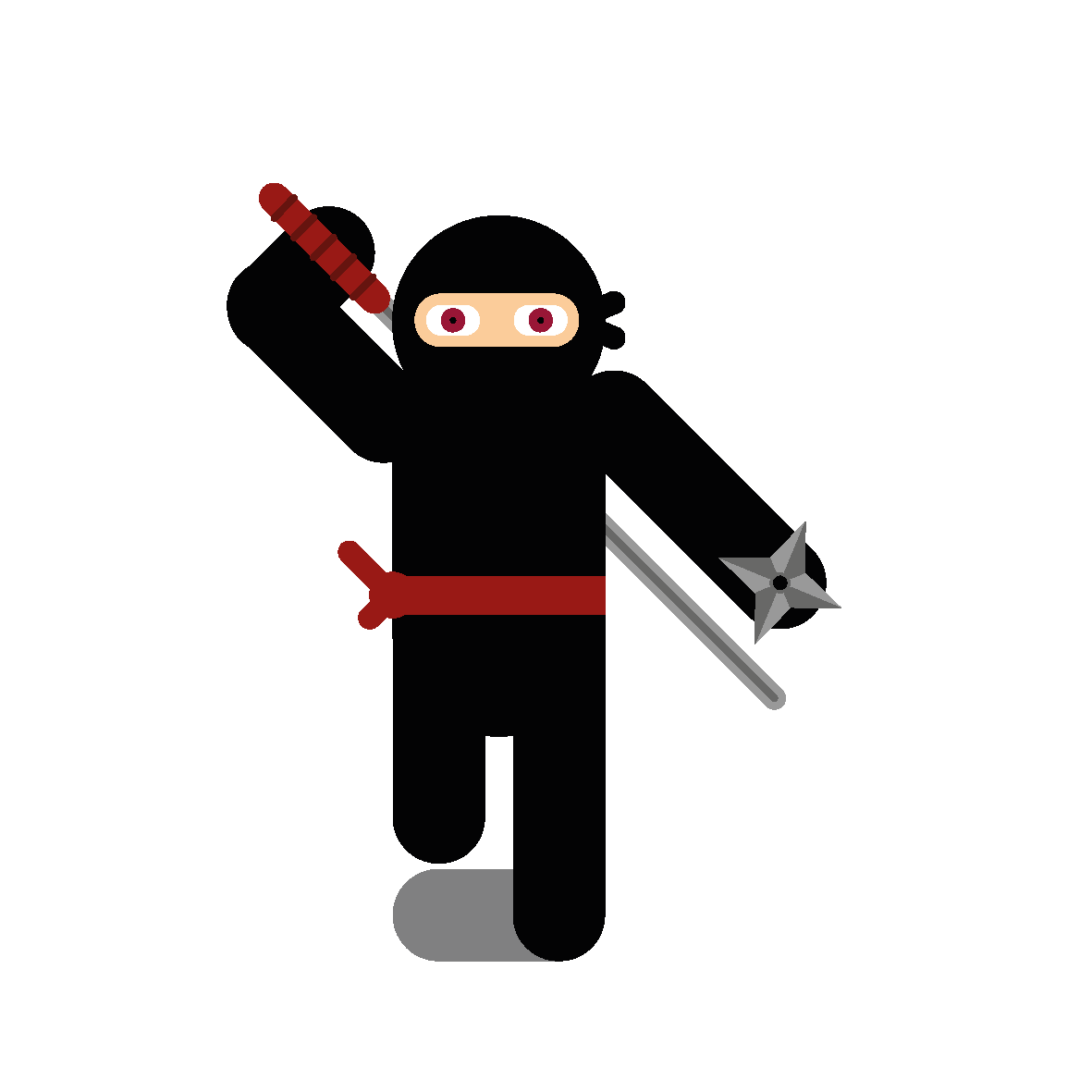
Red belt · 1 HP
Standard Ninja
The baseline enemy. It moves straight down at a readable speed and establishes the timing for the rest of the run.
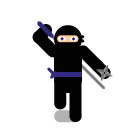
Blue belt · 1 HP
Zigzag Ninja
Slower on the vertical axis, but it sweeps noticeably from side to side. Lead your throw instead of aiming at its current position.
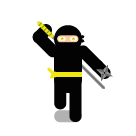
Yellow belt · 1 HP
Fast Ninja
Smaller and much faster than the standard class. It closes distance quickly, so it becomes a priority target as soon as it appears.
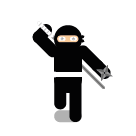
White belt · 3 HP
Tank Ninja
Larger and slower, but it survives three hits. Small hit-point markers show how much damage it can still take.
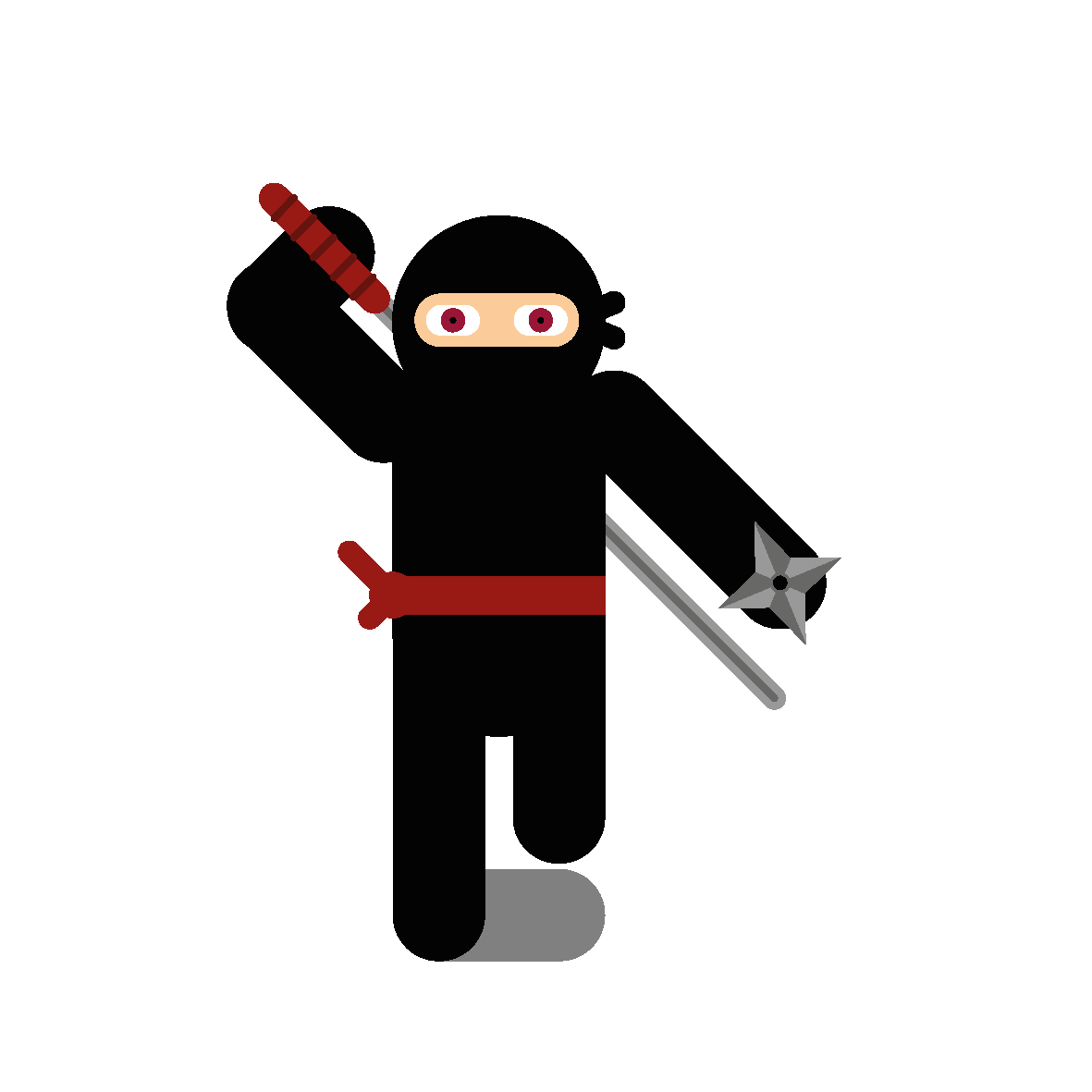
Red belt · 1 HP · projectile specialist
Thrower Ninja
This later-game variant moves more slowly but throws enemy shuriken far more often. It currently shares the red-belt look with the standard class, so watch its projectile pressure rather than relying on color alone.
Enemy shuriken can be cancelled by your own projectile. That means the safest throw is not always the one aimed directly at the nearest ninja.
Scoring and the Scroll of Fame
NiNjAttack uses arcade-style points rather than one point per defeated ninja. Standard, zigzag, fast, tank and thrower enemies have different base values; a non-lethal hit on the three-hit tank and a projectile interception also award smaller amounts. Five consecutive successful throws activate ×2 scoring, ten activate ×3 and fifteen activate the ×4 maximum. The Scroll of Fame has two views: Local keeps your ten best runs on this device, while Global shows up to the worldwide top 100. After you choose a public ninja name once, new personal global best scores sync automatically; no account or manual score submission is required.
Practical play tips
- Move with purpose. Use A/D or the arrow keys to collect valuable drops and dodge projectile pressure without losing sight of your next throw.
- Watch projectiles as well as enemies. An incoming shuriken can cost a life before the ninja that fired it reaches the bottom.
- Use interceptions. A well-placed throw can cancel an enemy shuriken and remove the immediate threat.
- Protect the combo, but do not panic-fire. A complete miss resets the streak, so high scores reward accurate throws rather than maximum tapping speed.
- Respect tanks. A Tank Ninja needs three hits, so starting too late can let it cross the player line before you finish it.
- Scan before the run. If you want to use the phone controller, pair it from the Controller menu before pressing Play so you are not handling setup during the action.
Controller troubleshooting
The QR code does not appear
Reload the game page and open the Controller view again. If a browser extension blocks the QR-code library or another required script, temporarily allowing the site's scripts may be necessary. The game now fails gracefully if the QR library cannot load instead of preventing the scroll menu from opening.
The phone opens the controller but throws do not reach the game
Keep both pages online, make sure the game tab has not been closed or replaced, then rescan the QR code from the current game tab. Each game tab uses its own session identifier.
The controller page says the session ID is missing
Open it through the QR code shown by the game rather than visiting /controller directly. The QR link includes the required session parameter.
The game works but I do not want to use a phone
Use mouse clicks on the main game canvas. The controller is an alternate input method, not a gate to the game.
Recommended setup
A larger desktop or laptop display makes the battlefield easier to read. Fullscreen mode can remove distractions, and a stable internet connection helps the cross-device controller remain responsive. Because the controller is browser-based, no mobile app account is required.